
Your first invoice, from rough note to paid
Begin the way you naturally work. Zemofin turns the details into an invoice you can review, send and follow through to payment.

Photograph the note, bill or handwritten page in front of you.

Dictate who you are billing, what for, and the amount.

Start clean when the details are already in your head.
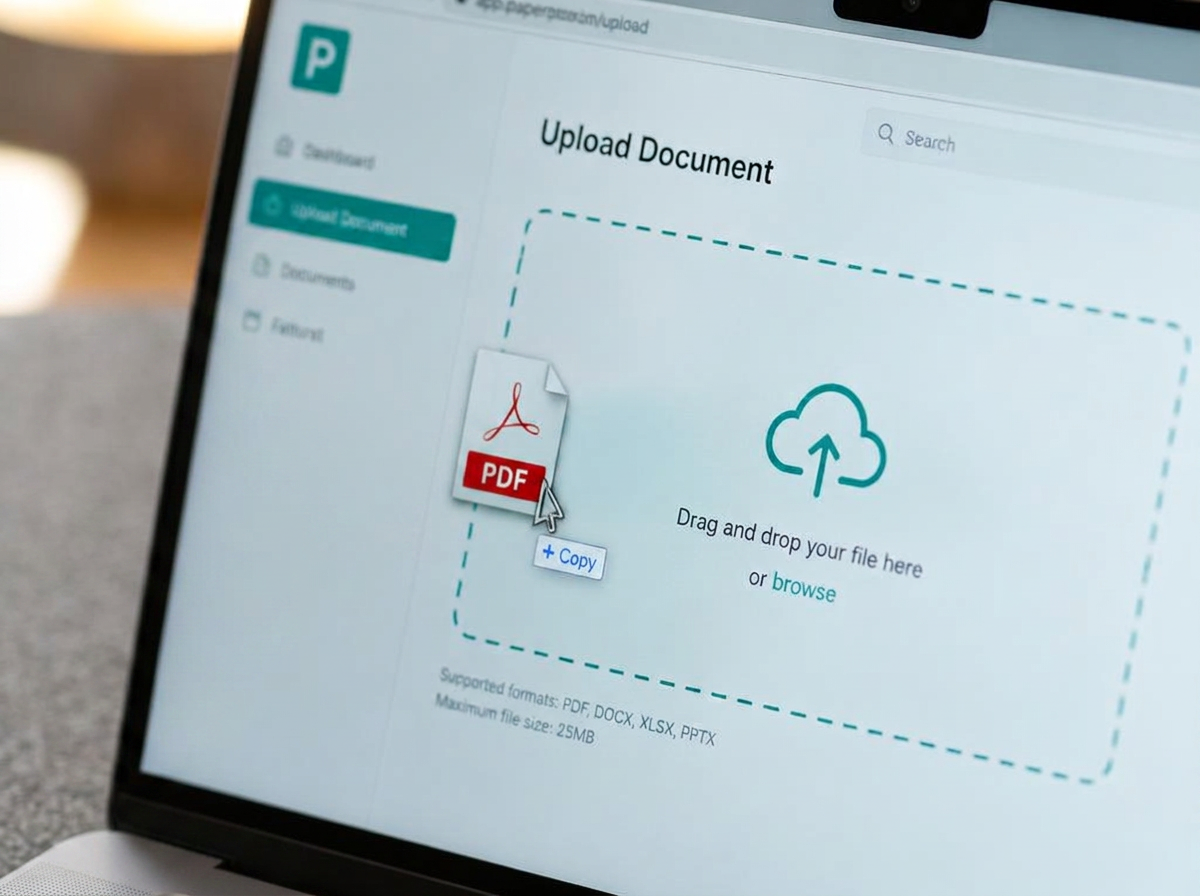
Drop in an existing image or PDF and let Zemofin read it.
Review
Low-confidence figures are flagged before anything leaves your hands.
Send
Share the finished invoice as a polished PDF from the same workspace.
Get paid
Track payment, issue the receipt, and keep Money In current.
Three workspaces, one set of books
Accounting Workspace
Start here for the whole-business overview, Account summary, Tax report and accountant access.
Money In
Create invoices, record collections and issue receipts for clients or patients.
Money Out
Review bills, manage expenses and track what has or has not been paid to vendors.
Ask Zemofin sits inside all three workspaces. India accounts can also configure standard GSTR-3B deadline reminders in Tax report; other countries can enter a custom tax date.
- 01
Upload your document
Drop a PDF, photo, or scan — or paste from clipboard. On mobile, snap a picture or dictate the line items aloud. Free tier allows up to 15 MB per file and 15 MB total per upload session.
Phone cameraLive dictation - 02
AI agents extract the data
Five agents run in sequence — OCR / vision, cleanup, spell-check, translate (optional), and confidence scoring. A sixth verifies the result before showing it.
- 03
De-duplicate & spell-check
One click removes duplicate columns and rows that the AI may have repeated. Spell-check fixes OCR misreads. Both are reversible — your original is untouched.
- 04
Review the flagged fields
Anything below 90% confidence is highlighted. Click any cell to edit. Identical columns get a blue flag; repeated rows get an orange exclamation — fix once and ship.
- 05
Export — CSV, XLS or PDF
One click to download. CSV for spreadsheets, XLS for Excel, PDF for a branded summary. On mobile you can also share straight to email or WhatsApp.
The flow at a glance
Forward a bill to your own address and it files itself — as a draft
Most bills arrive by email already. Rather than downloading each one and typing it in, forward it once and let Zemofin do the reading. You still have the last word: nothing reaches your books until you say so.
- 1
Find your address
Open My Account. Every account has one intake address — yourname.bill@zemofin.com, and the same name on zemofin.app. You choose the name once; after that it is fixed, so suppliers can save it.
- 2
Forward, or hand it out
Forward the bill yourself, or ask your supplier, landlord or assistant to send it straight there. A PDF, a photo of a paper bill, or an amount written in the body of the email all work.
- 3
It reads and replies
Within about a minute you get a reply naming the vendor, amount, date and tax, and whether it looks already paid or still due. If the file was unreadable, the reply says so plainly instead of guessing.
- 4
You approve it
The bill waits in Money Out as a draft marked Via email, with the original attached. Check it, change anything, save. Nothing counts towards your books, tax or totals until you do.
Sending the same bill twice is safe
A repeat is flagged against the one already filed rather than quietly added again, so a forwarded chain does not double your expenses.
There is a daily limit
Up to 50 emails a day per account. It is there to stop a stray mailing list or an auto-forward rule from flooding your drafts.
Only you can use it
Mail to your address is filed to your account and nobody else's, and the original file is stored with the expense so you can always see what was read.
Flagged, never silently corrected — you decide which number is the truth.
Tax Invoice
Let it run itself — the API, or your AI assistant over MCP
The same 5-agent pipeline is available as a REST API. Send a document (base64 in JSON) to /api/v1/parse or /api/v1/reconstruct and get the same structured result. Or add https://zemofin.app/mcp as an MCP server in Claude, ChatGPT (developer mode), Cursor, or any MCP client — sign in with your Zemofin account and the assistant can parse and browse your uploads on your behalf.
Connect Zemofin to Claude, ChatGPT or Cursor
Zemofin runs an MCP (Model Context Protocol) server. Add it once to your AI client and the assistant can parse receipts, reconstruct scans and browse your saved uploads for you — in plain English, without leaving the chat.
- Settings → Connectors → Add custom connector
- Paste the endpoint URL above
- Sign in to Zemofin in the popup and approve
- Ask: "list my recent documents"
- Settings → Connectors → Add (developer mode)
- Paste the endpoint URL, authorize
- Requires Pro/Team/Enterprise plan
- Settings → MCP → Add server
- Paste the endpoint URL, authorize
- Free on all Cursor tiers
- • "Parse this receipt and add it to my October expenses."
- • "List my last 20 uploads and total the amounts by vendor."
- • "Reconstruct this whiteboard photo into a clean meeting note."
- • "For my last 5 invoices, tell me which are missing a GST number."
- • "Read document abc123 and convert it to a JSON payload."
- • "Parse this Hindi bill and translate the headers to English."
- parse_document — document → structured table
- reconstruct_document — scan → formatted doc
- list_documents — browse your recent uploads
- get_document — open one by id
OAuth 2.1 with per-user consent. Each tool call runs as you, subject to your account's data and quota. The AI client never sees your API keys. Revoke access anytime from your account settings or from the AI client's connector list.
- "Unauthorized" right after adding it: sign in at zemofin.app in the same browser first, then add the connector again.
- Consent screen bounces home: re-add the connector using the endpoint exactly as shown, without editing it.
- A big PDF times out: MCP tool calls are synchronous — split very large files, or run them in the app instead.
- No documents listed: parsing over the API or MCP is stateless; upload once in the app to build history.
- API and MCP access are Plus and Pro features.
Prefer raw code over natural language? Grab a REST API key instead — same pipeline, same account.
Still curious? Read the FAQ.